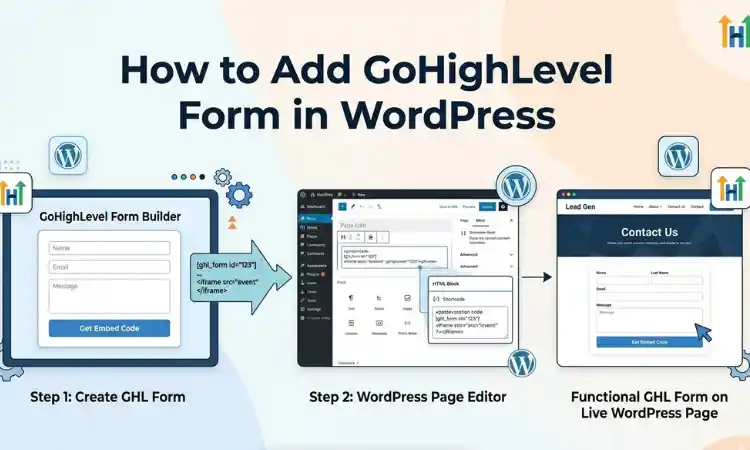
How to Add GoHighLevel Form in WordPress (Step-by-Step)
If you are using WordPress for your website and GoHighLevel for CRM and automation, connecting both platforms is essential. One of the most common tasks is adding GoHighLevel forms to your WordPress pages so you can capture leads and trigger workflows.
This step-by-step guide shows you exactly how to embed GoHighLevel forms into WordPress using different methods. Whether you are using Elementor, Gutenberg, or any page builder, this process is simple once you understand the basics.
If you are new to integration setups, you can also review this complete guide: Integrating GoHighLevel with WordPress.
Why Add GoHighLevel Forms to WordPress
GoHighLevel forms allow you to capture leads directly into your CRM. When connected properly, every form submission can trigger automation, send follow-ups, and assign leads to pipelines.
Benefits include:
- Automatic lead capture into CRM
- Instant workflow triggers
- Email and SMS follow-ups
- Centralized lead management
Step 1: Create a Form in GoHighLevel
Before embedding, you need a form ready inside GoHighLevel.
- Go to Sites in your GoHighLevel dashboard
- Click on Forms
- Create a new form or edit an existing one
- Add fields like name, email, phone number
- Save and publish your form
Make sure your form is connected to a workflow so that leads are followed up automatically.
Step 2: Copy the Form Embed Code
Once your form is ready:
- Open your form inside GoHighLevel
- Click on Integrate
- Copy the HTML embed code or iframe code
This code is what you will paste into WordPress.
Step 3: Add Form to WordPress Using Gutenberg
If you are using the default WordPress editor:
- Open the page where you want to add the form
- Add a Custom HTML block
- Paste the GoHighLevel embed code
- Preview and publish
Step 4: Add Form Using Elementor or Page Builders
If you use Elementor, Divi, or WPBakery:
- Drag an HTML widget into your page
- Paste the embed code
- Adjust spacing and layout
- Publish the page
This method gives you more control over design and placement.
Step 5: Test Your Form
After embedding the form, always test it:
- Submit a test entry
- Check if the lead appears in GoHighLevel
- Verify that workflows are triggered
- Confirm email or SMS follow-ups are sent
If your workflow is not set up yet, follow this guide: How to Build a 7-Day Lead Nurture Sequence in GoHighLevel.
Alternative Method: Using GoHighLevel Plugin
GoHighLevel also offers a WordPress plugin that allows easier integration.
- Install the LeadConnector plugin
- Connect your GoHighLevel account
- Select forms directly inside WordPress
This is useful if you manage multiple forms or want a cleaner setup.
Common Issues and Fixes
Form Not Showing
Check if the embed code is pasted correctly and not modified by the page builder.
Form Not Submitting
Ensure there are no JavaScript conflicts or caching issues.
Workflow Not Triggering
Verify that the form is connected to the correct workflow inside GoHighLevel.
GoHighLevel vs WordPress Forms
WordPress has its own form plugins, but GoHighLevel forms are designed for automation and CRM integration.
If you are comparing both platforms, read this detailed guide: GoHighLevel vs WordPress: Which One Is Better for Your Business.
When to Work With a GoHighLevel Expert
If you are managing multiple forms, complex workflows, or custom integrations, it may be worth working with a professional.
Experienced GoHighLevel developers can help you set up forms, automation, and integrations correctly.
Final Thoughts
Adding a GoHighLevel form to WordPress is simple once you understand the process. With the right setup, every form submission becomes an opportunity to engage leads, automate follow-ups, and grow your business.
Start with a basic form, test everything, and gradually build more advanced workflows as your system grows.
Author Bio
Lead GHL Developer
Harry’s been deep in the GoHighLevel world for 7+ years, tackling everything from tricky automations to custom API integrations that make clients’ systems hum. If there’s a way to streamline a process, he’s obsessed with finding it. When he’s not coding, he’s probably testing new GHL updates way too late at night.