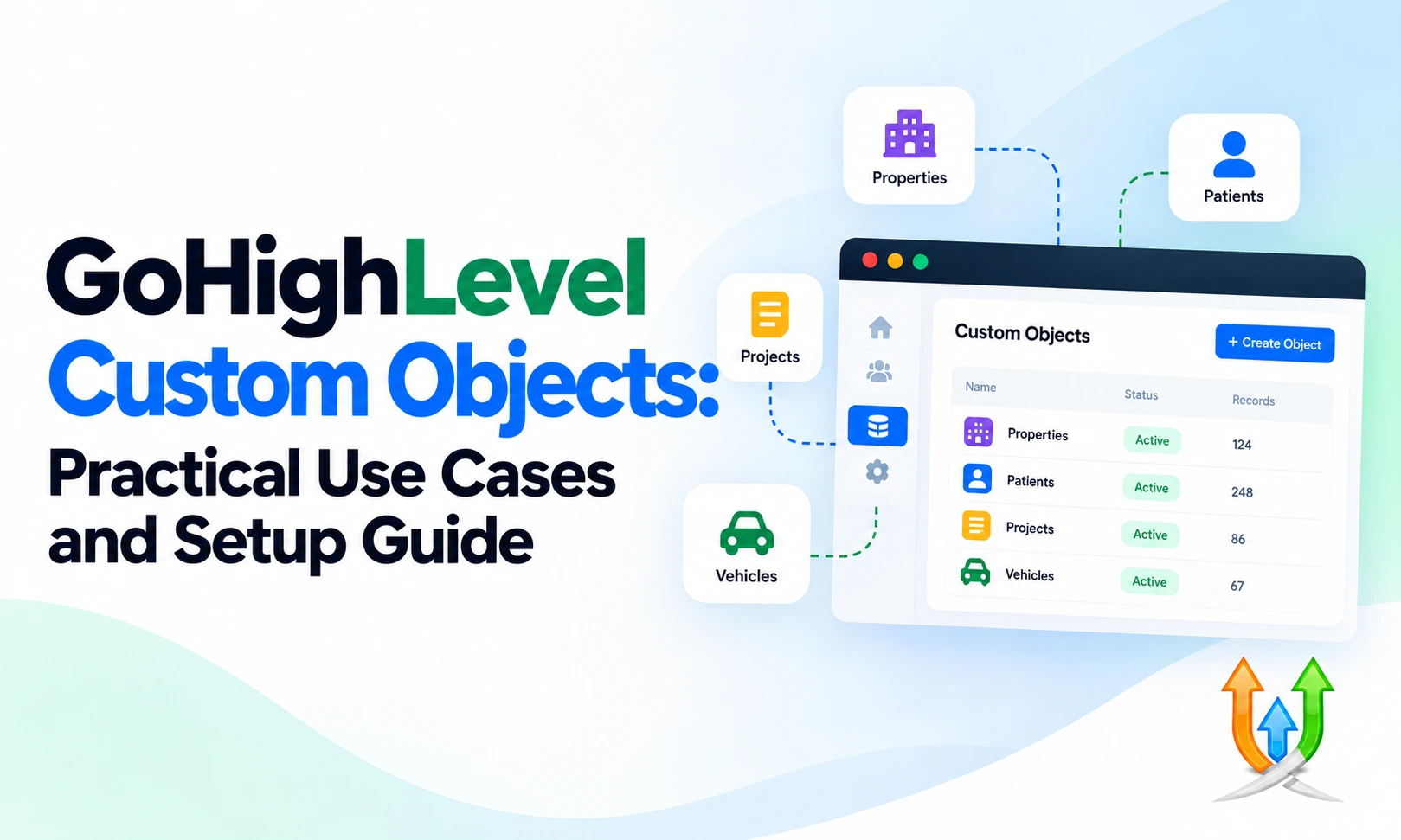
GoHighLevel Custom Objects: Practical Use Cases And Setup Guide
A flat contact database breaks down the moment your client runs a multi-dimensional business.
Standard CRM architectures give you contacts, companies, and sales opportunities. That setup works fine if you sell simple consulting packages or single service calls. It falls apart completely when a client needs to track five rental properties per landlord, three vehicles per policyholder, or ten private music lessons per family.
Agencies used to patch this limitation with messy custom fields. They created fields for Vehicle 1 Make, Vehicle 1 VIN, Vehicle 2 Make, and Vehicle 2 VIN. The contact records stretched across hundreds of unmanageable lines. At GHL Devs, we rebuild these hacked systems into structured relational databases using native custom objects.
Custom objects allow you to model complex real-world data inside your sub-accounts. You define the records, set up parent-child associations, and trigger automations based on changes to specific asset records.
Does GoHighLevel Include Custom Objects?
Yes, GoHighLevel includes native custom objects functionality. The platform released this feature to bridge the enterprise gap between basic marketing software and traditional databases like Salesforce or HubSpot.
Standard CRM objects represent people and deals. A contact record stores a person. A company record stores an employer. An opportunity record stores a transaction stage inside a pipeline.
Custom objects represent anything else your business touches. You can create custom object types for Properties, Vehicles, Pets, Insurance Policies, Shipments, or Equipment. Each custom object type contains its own independent custom fields, activity timelines, and relationship associations.
This relational design means a single contact profile can connect to multiple independent property records. Each property record maintains its own address, inspection history, and square footage without cluttering the primary contact profile.
Which GoHighLevel Plans Include Custom Objects And Plan Requirements
Access to custom objects depends strictly on your master agency subscription level. GoHighLevel reserves this advanced database capability for top-tier plans.
To use custom objects, your agency must operate on the Agency Pro plan, priced at $497 per month, or an Enterprise agreement. The basic $97 per month Starter plan and the $297 per month Unlimited plan do not include custom object creation capabilities.
GoHighLevel custom objects plan requirements mandate that the master agency account holds active SaaS Mode permissions. If your agency runs on the $297 plan, your sub-accounts will not display the Custom Objects management tab inside their settings menus.
Upgrading your agency to the $497 tier unlocks custom objects globally. Once upgraded, you can enable or disable the feature for individual sub-accounts through your agency management dashboard.
GoHighLevel Custom Objects Pricing And Upgrade Costs
Agency owners frequently ask about extra usage fees for database expansion. GoHighLevel custom objects pricing is bundled directly into the flat $497 monthly Agency Pro subscription.
The platform does not charge per-object creation fees or micro-transaction fees for storing relational records. You can build multiple distinct object schemas inside an authorized sub-account without incurring additional software charges.
This flat pricing structure offers a massive financial advantage over competitors. Platforms like HubSpot place severe limits on custom object definitions and require expensive enterprise tiers that cost thousands of dollars each month. GoHighLevel allows you to deploy custom data models across all your client sub-accounts under one master subscription.
You can package these advanced database setups as premium upgrades for your SaaS users. You can charge your clients a higher monthly subscription fee to access industry-specific snapshots that feature pre-configured custom objects.
How To Get Access To Custom Objects In GoHighLevel
Unlocking the feature requires two administrative steps inside your agency workspace. You must confirm your plan status before trying to build schemas inside a client account.
First, log into your Agency View and check your Billing tab. Verify that your account shows an active Agency Pro subscription. If your agency sits on the $297 plan, process the upgrade to Agency Pro.
Second, navigate to the Sub-Accounts list in your Agency View. Locate the specific client account that requires relational data. Click the Manage Features button for that sub-account and verify that the Custom Objects toggle is switched to active.
Switching this toggle injects the Custom Objects schema manager directly into the client sub-account settings. Your team can then build objects directly in the web browser interface or push schemas programmatically using the LeadConnector API v2.
Understanding GoHighLevel Custom Objects Feature Availability
Feature distribution inside sub-accounts requires careful permission management. Agency administrators maintain absolute control over GoHighLevel custom objects feature availability across their client roster.
You can selectively enable custom objects for high-paying retainer clients while keeping the feature hidden from entry-level users. This control prevents novice users from corrupting complex database schemas or deleting foundational relationship keys.
Inside the sub-account, user roles dictate record interactions. Standard sales representatives can view and edit individual custom object records assigned to their contacts. They cannot alter the underlying object schema or delete master fields unless granted administrator rights.
Custom object records appear natively across the desktop interface. They show up as associated cards inside the contact view, selectable filters inside smart lists, and data targets inside workflow action nodes.
Practical Use Case 1: Real Estate Properties And Leases
Real estate brokerages and property management agencies manage complex relational trees daily. A single property investor might own twenty residential units across four apartment complexes.
Trying to manage this portfolio using basic contact fields creates an unreadable mess. With custom objects, you create a dedicated object called Properties. Inside the Property schema, you add fields for Parcel Number, Square Footage, Purchase Price, Year Built, and HOA Dues.
You associate the Property object with the Contact object using a one-to-many relationship. When a leasing agent opens the investor contact card, they see a clean list of all twenty connected properties on the right side of the screen.
Clicking an individual property record opens its specific history. Agents can log repair notes, track tenant lease agreements, and store property tax documents directly on the asset profile without mixing data between different buildings.
Practical Use Case 2: Automotive Dealerships And Service Logs
Car dealerships and auto repair franchises deal with vehicles that transfer between owners over time. The vehicle itself holds the service history, while the driver holds the billing details.
You build a custom object called Vehicles. You create fields for VIN, Make, Model, Year, Trim Level, License Plate, and Current Mileage. You link the Vehicle object to the Contact object.
When a driver books an oil change, your intake workflow updates the mileage field on that specific Vehicle record. If the driver sells the car to a family member, your staff simply updates the contact association link. The complete service history remains attached to the VIN record permanently.
Your team can trigger outbound maintenance reminders using our standard guide on lead connector channels. The workflow pulls the exact vehicle make, model, and mileage dynamically into the text message.
Practical Use Case 3: Veterinary Clinics And Pet Profiles
Veterinary practices and boarding kennels communicate with pet owners, but their medical records focus entirely on the animals. A single pet parent often brings three dogs and two cats to the same clinic.
You construct a custom object titled Pets. You add custom fields for Species, Breed, Weight, Rabies Vaccine Expiration Date, Microchip Number, and Dietary Restrictions. You configure a relationship between the Pet object and the Contact record.
When a pet parent calls the clinic, the receptionist opens their contact card and immediately sees five separate pet tabs. Clicking the tab for a golden retriever displays the upcoming rabies vaccination deadline.
You can automate vaccination reminders through international chat channels. Follow our technical tutorial to setup whatsapp in ghl so pet parents receive automated health alerts directly on their favorite mobile messaging applications.
Practical Use Case 4: Education Batches And Course Enrollments
Private tutoring centers, flight schools, and trade academies manage students who enroll in multiple training programs throughout the year. Student records need clear separation from academic cohorts.
You create a custom object called Courses and a secondary custom object called Batches. Fields include Start Date, Instructor Name, Classroom Location, Maximum Capacity, and Completion Status. You associate the Student contact profile with the specific Batch object.
When an instructor takes attendance, they view the Batch record to see the complete roster of enrolled student contacts. When a student completes a course, a workflow updates their individual enrollment record to Graduated.
The student's contact profile maintains a clean chronological list of every training course they ever completed. This historical tracking makes it easy to pitch advanced continuing education programs six months later.
Step-By-Step Setup Guide: Building Your First Custom Object Schema
Building a custom object requires planning your data architecture before clicking buttons in the dashboard. Sketch your object hierarchy on paper first to define your fields and labels.
Step one: Open your target sub-account and click Settings in the bottom left corner. Scroll down the left menu and select Custom Objects. Click the Create Object button in the top right corner.
Step two: Define your object labels. Enter the Singular Label, such as Property, and the Plural Label, such as Properties. Enter an Object Description to explain the record purpose to junior staff members.
Step three: Choose your Primary Display Property. This property acts as the primary name displayed on cards and search results. For a real estate object, set the Primary Display Property to Property Address. For an automotive object, set it to VIN.
Step four: Add your specific custom fields. Click into the Fields tab of your new object schema. Add text boxes, numeric values, date pickers, currency fields, and dropdown menus exactly as you would for standard contact records.
Configuring Relationships And Associations Between CRM Records
An isolated custom object provides little value. The real operational power appears when you build associations between records.
Inside your object settings, click the Associations tab. You define how your custom object interacts with Contacts, Companies, and other custom objects. The platform supports three primary relationship types.
A One-to-One relationship links a single custom object record to exactly one contact profile. Use this for highly specific assets like a primary residential lease or an executive background check file.
A One-to-Many relationship allows a single contact record to link to multiple custom object records. This is the most common agency configuration. One customer connects to multiple vehicles, multiple pets, or multiple rental properties.
A Many-to-Many relationship connects multiple contacts to multiple custom objects. Use this when a commercial real estate property has four legal co-owners, or when a business partnership operates multiple commercial trucks. Define your relationship labels clearly so reps understand the connection when viewing records.
Building Automated Workflows Powered By Custom Object Triggers
Custom objects integrate deeply into the GoHighLevel workflow engine. You can trigger complex automations based on changes to relational records.
Open the Automation tab and create a fresh workflow. When selecting your trigger, look for the Custom Object section. You will see triggers for Object Created, Object Updated, and Object Associated.
Select Object Updated and set your filters. For an auto repair shop, set the condition to trigger when the Vehicle object's Next Service Due date is less than seven days away. The workflow wakes up, identifies the vehicle record, and finds the associated contact profile.
You can combine this relational automation with inbound call routing. Review how call tracking in ghl tracks incoming phone numbers so your sales team sees the caller's associated vehicle records the moment the phone rings.
Dynamic Communications And Merge Tags With Relational Records
Personalizing messages using custom object data requires proper merge tag syntax. The system allows you to pull fields from the associated asset directly into your outbound messages.
Inside your email or SMS action node, open the merge tag picker. You will see a dedicated section for your active custom objects alongside standard contact fields. You select the specific object property you want to display.
Your message template can state: "Hello {{contact.first_name}}, our records indicate your {{custom_object.vehicle.make}} {{custom_object.vehicle.model}} is due for inspection on {{custom_object.vehicle.inspection_date}}." The engine populates the exact data from the linked asset record.
Watch your filter configurations carefully when launching these workflows. Review our audit findings on silent bugs in ghl to ensure your dynamic merge tags do not attempt to read empty records and drop messages silently.
Connecting External Systems And Middleware Databases
Enterprise clients often maintain external SQL databases, ERP systems, or warehouse software. You can synchronize these external data sources with GoHighLevel custom objects.
The LeadConnector API v2 provides dedicated endpoints for custom objects. You can create new object records, query existing assets by unique IDs, and update association links programmatically from external scripts.
You can also use middleware platforms to bridge simple data streams without writing custom code. Read our comprehensive tutorial to connect ghl to zapier to push rows from external spreadsheets or inventory databases straight into custom object profiles.
Build error-handling rules into your middleware webhooks. If an external system attempts to create a custom object with an invalid association ID, your sync script must catch the error and log the failure cleanly.
Capturing Custom Object Data In Inbound Funnels
Capturing relational data from paid traffic requires structured intake funnels. You must map your landing page forms to feed custom object records correctly.
When designing an intake form, add custom object fields alongside your standard name, email, and phone inputs. The platform recognizes that the visitor is creating both a contact profile and a linked asset profile simultaneously.
Compare your funnel performance closely. Read our test results on meta leads form vs ghl landing pages to understand why multi-step landing pages convert complex relational data far better than native social forms. Visitors need space to type detailed asset information like serial numbers and property addresses.
Once the form submits, your intake workflow creates the contact, generates the custom object record, and establishes the association link automatically in seconds.
Handling Subscriptions And Payments For Relational Assets
Commercial clients frequently bill customers for individual assets rather than general services. A marina bills boat owners per slip, while an IT firm bills businesses per managed server.
You can attach billing transactions directly to custom object records. When a customer enters their payment details, your workflow logs the transaction ID and renewal date inside the asset profile.
Monitor your merchant gateways closely when handling recurring asset payments. Read our guide to resolving stripe and paypal integration issue errors so payment failures trigger automatic asset suspension workflows without corrupting underlying database records.
If a client cancels a subscription for one specific vehicle, the automation pauses service for that single car record while leaving their other vehicle accounts active.
Deploying Custom Schemas In Agency Client Onboarding
Rolling out custom objects across multiple client sub-accounts requires strict quality control. You should never build complex schemas manually in live production accounts one by one.
Build your master custom object schemas inside a clean agency template sub-account. Test the fields, associations, and workflow triggers thoroughly using dummy test contacts. Once verified, package the setup into a reusable agency snapshot.
Incorporate this snapshot deployment into your standard client kickoff. Follow our structured onboarding checklist to ensure custom object permissions, staff roles, and custom fields deploy cleanly during the first thirty days of service.
Document the data dictionary for your client's administrative team. Provide a simple one-page guide explaining which fields are mandatory when staff members create new custom records manually.
Knowing When To Bring In Dedicated Database Developers
Basic one-to-many custom objects can be configured using the native drag-and-drop settings. Complex enterprise deployments require deeper engineering.
If your client requires complex many-to-many relationships, bidirectional API synchronization with proprietary enterprise databases, or custom iframe interface extensions, manual settings are not enough. Building custom database middleware requires full-stack development experience.
Our team specializes in building scalable data architectures, custom webhook bridges, and private marketplace applications for fast-growing agencies. If your team needs expert assistance designing custom object schemas, reach out to hire now and book a technical consultation with our senior engineers.
We audit your data flow, construct clean relational schemas, and ensure your CRM scales smoothly as your client accounts grow.
The Long-Term Architecture Review
GoHighLevel custom objects elevate the platform from a simple marketing tool into an enterprise-grade relational database.
You eliminate the messy workarounds of bloated custom fields and secondary sub-accounts. You model businesses accurately according to their real-world operations, whether they manage properties, vehicles, pets, or training cohorts.
Verify your agency plan status, secure your Agency Pro access, and plan your schema structures carefully before building. When you deploy relational data models with clean associations and targeted workflow triggers, your agency delivers a level of software sophistication that locks in client retention for years.
Author Bio
Lead GHL Developer
Harry's been deep in the GoHighLevel world for 7+ years, tackling everything from tricky automations to custom API integrations that make clients' systems hum. If there's a way to tighten a process, he's obsessed with finding it. When he's not coding, he's probably testing new GHL updates way too late at night.