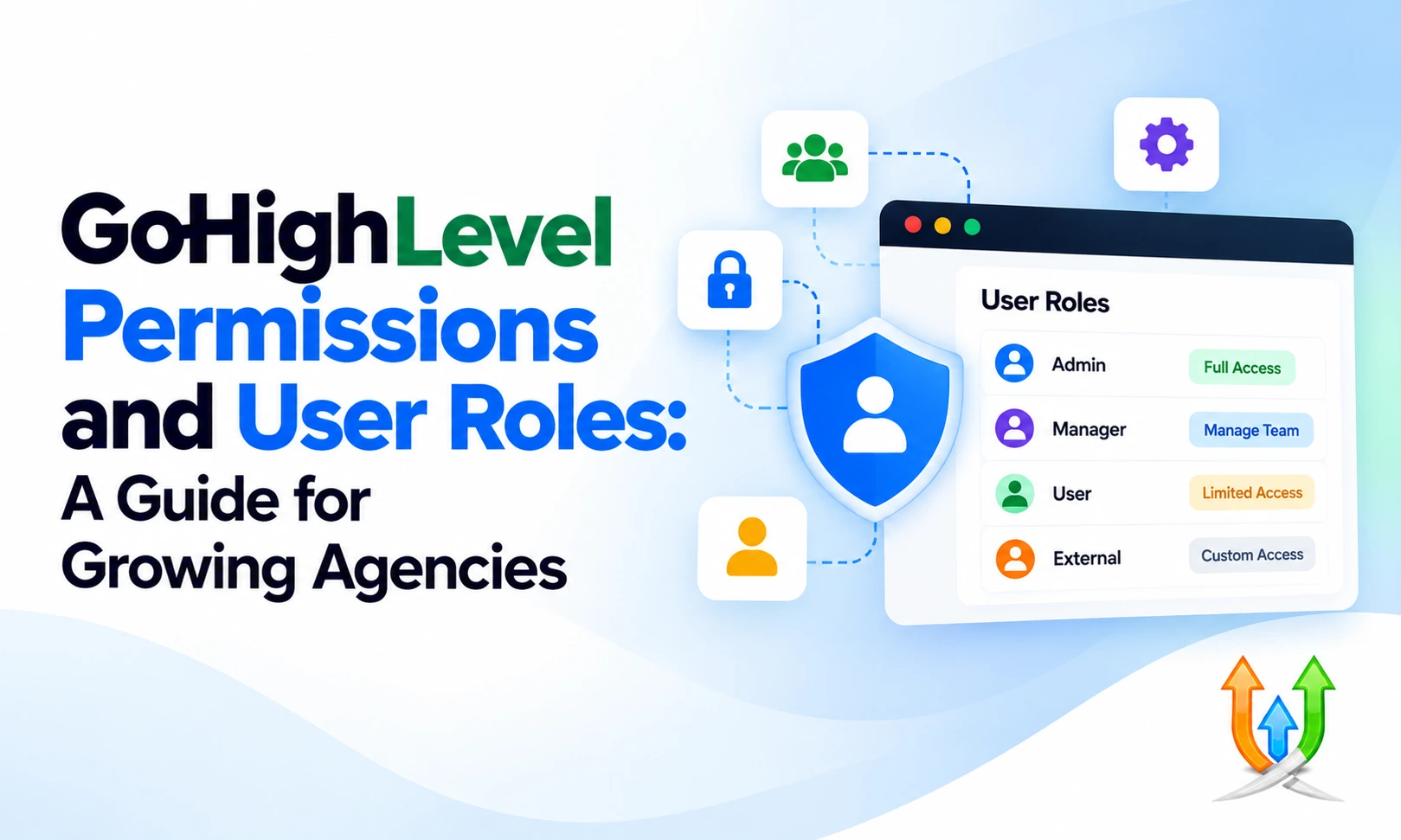
GoHighLevel Permissions And User Roles: A Guide For Growing Agencies
An agency owner handed their virtual assistant full admin credentials last month.
The virtual assistant clicked the bulk delete button on a live contact view by mistake. Over 14,000 active customer records vanished before noon.
The agency spent 48 hours restoring backups, apologizing to paying clients, and rebuilding pipeline cards. Security disasters like this happen when you treat team permissions casually.
Running an agency requires controlling who can see, edit, and export your company assets. At GHL developers, we build strict role hierarchies for agencies managing hundreds of client accounts.
Understanding GoHighLevel permissions and user roles protects your client databases, stops lead theft, and keeps your operations stable as your team expands. Here is the complete operational guide to locking down your sub-accounts and configuring user access properly.
Understanding GoHighLevel Permissions And User Roles
The platform separates user controls into structural layers.
You have account-level permissions and user-specific permission toggles. User roles determine what broad category of user someone is, while user permissions dictate the exact buttons, menus, and tabs they can interact with.
A user role establishes the baseline security boundary. A user permission toggle turns individual software features on or off for that specific individual.
When you add a team member, you assign them to an administrative layer first. Then you fine-tune their day-to-day access using granular permission checkboxes. This dual-layer system prevents operational accidents and keeps your workspace organized.
Agency Level Roles Versus Account Level Roles
The first major division exists between the Agency View and individual Sub-Accounts.
Agency-level roles grant access to the master management console. An Agency Admin can create new sub-accounts, view global financial statements, modify SaaS pricing tiers, and delete client workspaces. You should only grant Agency Admin status to legal business partners and senior technical directors.
An Agency User can see sub-accounts assigned to them, but they cannot alter master billing records or delete agency-wide integrations. This role fits account managers who supervise multiple client accounts simultaneously.
Account-level roles live entirely inside individual sub-accounts. An Account Admin controls settings, integrations, and user lists for a single business location. An Account User sees only the marketing tools, contacts, and pipelines permitted by the admin.
How To Set User Permissions In GoHighLevel
Configuring baseline access takes less than two minutes inside your team management panel.
Log into your target sub-account and click Settings in the bottom left corner. Select My Staff from the left navigation menu. You will see a complete roster of all active team members.
Click the Edit button next to the team member you want to adjust. Scroll down to the User Permissions accordion menu. Tapping this menu opens a grid of switches covering every major feature in the software.
You can toggle access for Campaigns, Triggers, Contacts, Funnels, Conversations, and Reputation Management. Flip the switches to green for tools the employee needs to do their job. Leave switches off for tools they should never touch.
How To Limit User Access In GoHighLevel For Junior Staff
Junior employees and external appointment setters should never see your entire marketing engine.
When you learn how to limit user access in GoHighLevel, you eliminate operational clutter and prevent unauthorized changes. Open the employee profile inside My Staff and expand User Permissions.
Turn off the Marketing toggle to hide email builders and social planners. Turn off the Funnels and Websites toggle so junior reps cannot accidentally delete high-converting landing pages. Turn off the Settings toggle to prevent staff from altering phone numbers or API keys.
Scroll down to the User Roles section. Set their role to User rather than Admin. Setting an employee to User restricts them to basic day-to-day data entry without administrative power.
Protecting Customer Records And Disabling Contact Exports
Disgruntled sales reps downloading client databases poses a massive threat to marketing agencies.
A rogue employee can export 10,000 verified leads to a CSV file and sell them to a competing agency on their way out the door. You must disable data export capabilities for all non-admin staff immediately.
Inside the User Permissions panel, find the Contact Export switch. Flip this switch to off. The system removes the Export Contacts button from their screen entirely.
You can also turn off the Contact Delete switch. This stops frustrated reps from wiping contact records after an argument. If your team builds custom workflows, review our guide to automation setup protocols to keep your core lead pipelines isolated from manual tampering.
How To Give A GoHighLevel User Specific Permissions For Phone And Email
Sales floors require precise communication routing to prevent reps from stepping on each other.
Knowing how to give a GoHighLevel user specific permissions for calls and messaging keeps your outreach clean. Open the employee profile and locate the Call and SMS Settings tab.
Assign a dedicated outbound phone number to the representative. When this rep calls a prospect, the caller ID shows their designated line. If you configure advanced call tracking numbers, assign specific tracking pools so incoming callbacks route directly to the responsible rep.
Under User Permissions, look for the Only Assigned Data toggle. Turning this toggle on is a massive security upgrade. The sales rep will only see conversations, contacts, and appointments assigned specifically to their name, keeping the rest of your database completely invisible to them.
How To Create A Custom User Role In GoHighLevel
Standard roles sometimes lack the nuance required for specialized agency positions.
Understanding how to create a custom user role in GoHighLevel allows you to build reusable permission templates for specific job titles. You can build a standard Media Buyer role, a Closer role, and a Virtual Assistant role.
Navigate to your Agency Settings menu and click on Roles and Permissions. Click the Create Role button in the top right corner. Enter a clear title like Appointment Setter Tier 1.
Go through the master checklist of permissions. Select checkboxes for Conversations, Opportunities, and Calendars. Uncheck settings for Payments, Workflows, and Custom Fields. Save the template. You can now apply this exact permission profile to ten new hires with a single click.
How To Edit A User Role In GoHighLevel
Agency responsibilities evolve as employees take on larger operational duties.
Knowing how to edit a user role in GoHighLevel ensures your system reflects organizational promotions cleanly. Go back to Agency Settings and open the Roles and Permissions tab.
Find the role template you want to modify and click the Edit pencil icon. You can add new feature access globally. If you decide that Appointment Setters should now manage review generation, check the Reputation Management box.
Save your updates. The platform pushes this permission adjustment across every single employee currently assigned to that custom role across all sub-accounts automatically. This centralized editing saves dozens of hours of manual user maintenance.
How To Change Permissions For A GoHighLevel Team Member Fast
Sometimes you need to adjust permissions for one specific individual without altering a global role template.
Learning how to change permissions for a GoHighLevel team member gives you rapid tactical control. Open the specific sub-account where the employee operates and navigate to Settings, then My Staff.
Click Edit on the user record. If an employee transfers from outbound calling to customer support, toggle on the Ticket Management and Live Chat switches. Toggle off the Outbound Calling and Manual Dials switches.
Hit Save at the bottom of the screen. The user interface updates for that employee immediately upon their next browser refresh. They gain access to their new tools while losing access to old departments instantly.
Managing Access Across Multiple Sub-Accounts For Media Buyers
Agencies running paid ads for multiple clients need specialized staff routing.
You do not want your Facebook media buyer logging into five different client sub-accounts with five separate passwords. You also do not want to make that media buyer an Agency Admin with access to your corporate banking details.
Add the employee as an Agency User from your master Agency Settings. Open their profile and scroll down to the Sub-Account Access section. Select User Access to Specific Sub-Accounts.
Check the boxes only for the specific client accounts that media buyer manages. When they log into the CRM, their sub-account switcher dropdown only displays those assigned locations. If you deploy pre-built client assets, you can buy snapshots to quickly spin up standardized workspaces with these user access parameters already structured.
Safeguarding Automation Workflows And Trigger Nodes
A single broken condition in a live automation halts client lead flows.
Sales reps should never have permission to edit automated workflows. They might change a wait timer or delete an email action step while trying to diagnose a customer inquiry.
Open User Permissions and locate the Workflows toggle. For sales reps, appointment setters, and junior support staff, turn this toggle completely off. They will still be able to trigger workflows through manual tags and pipeline stage changes, but they cannot open the visual workflow builder.
Restrict workflow editing rights strictly to senior automation engineers. This boundary ensures your operational logic stays locked, tested, and protected against accidental edits.
Controlling Access To Relational Data Schemas
Enterprise accounts use complex data structures to manage multi-tiered business assets.
If your agency uses ghl custom objects to track vehicles, properties, or patient records, you must protect those relational schemas. A novice user who deletes a master object field can corrupt thousands of linked customer profiles.
Under your custom object settings, adjust field-level permissions. Set your core identification fields to Read Only for standard user accounts. Sales reps can view property parcel numbers or policy expiration dates, but they cannot rewrite the underlying schema keys.
Only designated database managers should hold permissions to create new custom object records or alter relationship associations. Restricting schema modification rights keeps your relational databases accurate and reliable.
Regulating AI Generation Tools And Conversation Prompts
Artificial intelligence tools require strict administrative boundaries to avoid unexpected expenses.
The platform offers native text generation and conversational bot builders. If every team member runs hundreds of open-ended AI prompts daily, your agency usage wallet drains rapidly.
When you connect highlevel with openai to handle conversational replies, keep the prompt configuration screens restricted to administrators. Standard reps should use the resulting AI assistance features inside the conversation window without having access to rewrite system prompts or change temperature parameters.
Disable AI Content Generation permissions for junior staff if your business model does not require them to draft marketing campaigns. This restriction keeps your API billing predictable and protects your brand voice.
Structuring Client User Access Without Exposing Backend Tech
Giving clients access to their sub-accounts builds transparency and trust.
Giving them unrestricted access creates endless technical support tickets. Clients click into active funnels, alter DNS settings, or break webhook connections, and then blame your agency when leads stop arriving.
Create a dedicated Client User role. Turn off Workflows, Funnels, Integrations, and Custom Fields. Leave Conversations, Opportunities, Contacts, and Calendars turned on.
The client logs in and sees a clean, professional software dashboard. They can review their incoming leads, listen to phone call recordings, and reply to customer text messages. They cannot access the delicate backend wiring that keeps the lead engine running.
Auditing Activity Logs And Inspecting System Changes
Accountability requires clear operational tracking.
When a lead status changes unexpectedly or an appointment gets canceled, you must know who executed the action. The Audit Logs feature provides a chronological history of every user interaction inside the account.
Navigate to Settings and select Audit Logs. You can filter the log by specific team members, date ranges, or action types. The log displays the exact timestamp, the IP address, and the specific change made.
Reviewing audit logs monthly helps you spot unauthorized attempts to export data or unusual activity patterns. If an employee logs in from an unrecognized geographic location at two in the morning, you can investigate immediately.
Professional Security Support And Architecture Planning
Managing permissions for a ten-person team is relatively simple.
Managing custom roles, API authorizations, and staff routing across fifty sub-accounts requires dedicated engineering. If you run a high-volume SaaS business, manual user management becomes a severe growth bottleneck.
Our team builds automated staff provisioning scripts, custom role snapshots, and secure user management pipelines. You can review our ghl development pricing to explore dedicated engineering retainers that keep your agency secure and organized.
We audit your security configurations, eliminate permission vulnerabilities, and build scalable team onboarding workflows tailored to your operational structure.
The Step-By-Step Agency Security Audit Checklist
Run this simple security audit across your agency workspaces on the first Friday of every month.
- Audit Agency Admins: Open your master agency settings and review the Agency Admin list. Remove admin status from any contractor or former employee who no longer requires executive access.
- Check Export Permissions: Inspect all active staff profiles across your top ten sub-accounts. Verify that Contact Export and Contact Delete switches remain turned off for all sales reps and virtual assistants.
- Inspect Unassigned Inboxes: Check user communication settings to ensure outbound phone numbers and sending emails map to active employees. Reassign lines belonging to departed staff members.
- Review Sub-Account Assignments: Verify that media buyers and account managers only hold access to their currently assigned client accounts. Remove access to past clients immediately.
- Offboard Departed Users: Never just leave old accounts dormant. Delete the user profile or transfer their assigned contacts to an active team member, then terminate the login credentials permanently.
Building A Disciplined User Access Blueprint
A growing agency cannot afford sloppy permission management.
Every team member must operate within clear, intentional boundaries. Start by establishing the division between your master agency views and your client sub-accounts. Build custom roles for specific positions rather than handing out admin badges freely.
Lock down data exports to protect your client databases from theft. Restrict workflow and funnel editing to your senior technical staff, and configure client logins to show conversations without exposing backend settings.
Treating user permissions as a vital security foundation ensures your agency scales smoothly, protects valuable customer relationships, and avoids costly operational disasters.
Author Bio
Lead GHL Developer
Harry's been deep in the GoHighLevel world for 7+ years, tackling everything from tricky automations to custom API integrations that make clients' systems hum. If there's a way to tighten a process, he's obsessed with finding it. When he's not coding, he's probably testing new GHL updates way too late at night.