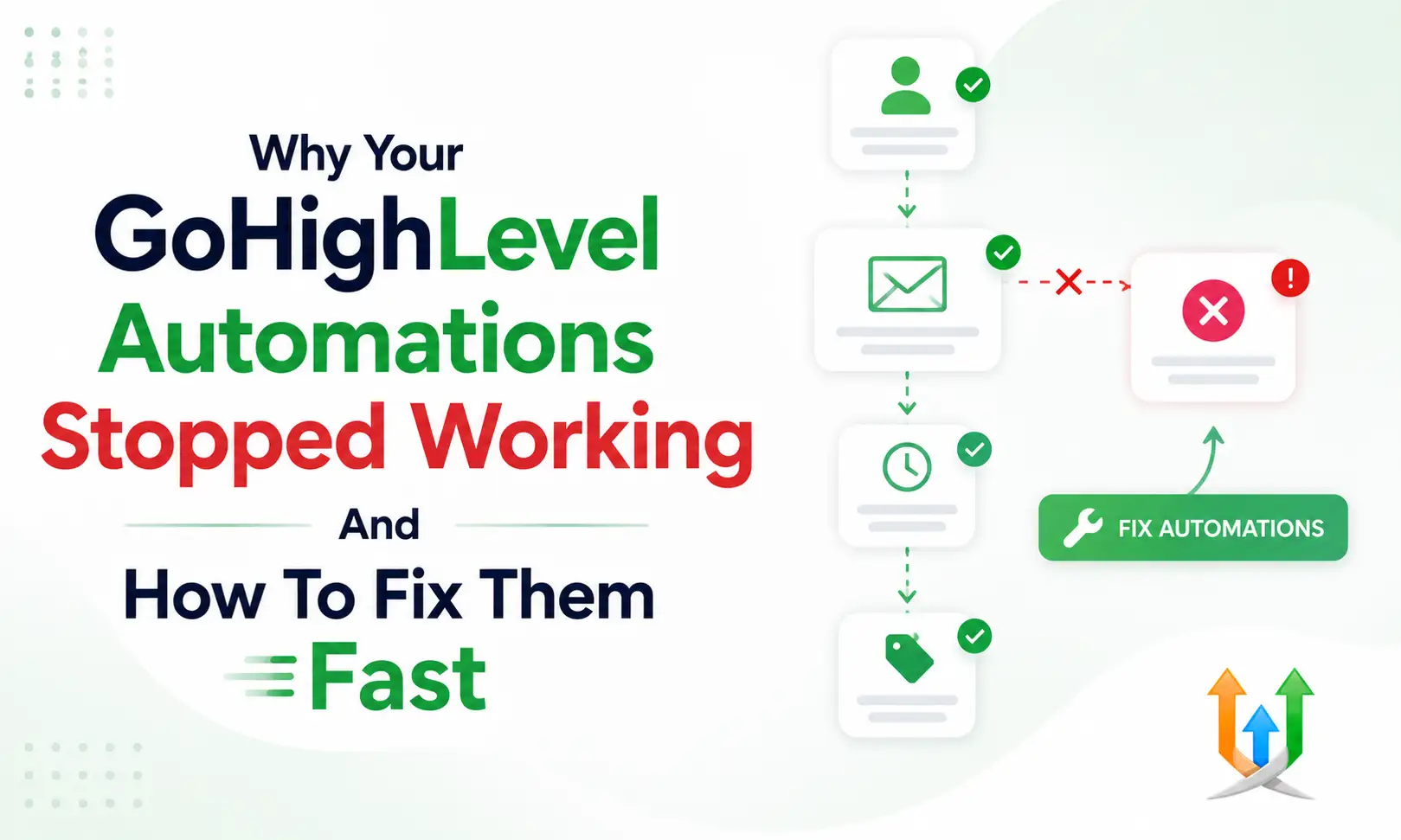
Why Your GoHighLevel Automations Stopped Working And How To Fix Them Fast
An automation stops without sending an alert.
You discover the problem three days later when a client asks why nobody replied to their inquiry. Leads accumulate in your database without receiving a welcome text, an email, or a task assignment.
This silent failure costs you sales every single hour it goes unnoticed.
I fix these broken systems every week as a hire ghl developer specialist. Understanding why GoHighLevel automations stopped working allows you to restore your lead flow in minutes.
Here is the exact diagnostic process to locate execution errors and fix your broken workflows fast.
Checking Your Workflow Status And Draft Settings
The most frequent cause of a GoHighLevel workflow stopped running is simple human error.
Someone edits an action step inside the builder and forgets to publish the changes. The system flips the workflow status back to Draft automatically when you save uncommitted edits.
Open your automation dashboard and check the status column next to your sequence name. A yellow badge indicates the workflow sits in Draft mode. The CRM ignores incoming leads completely while a workflow remains in Draft status.
Click the toggle switch in the upper right corner of the workflow builder to set the status to Published. Save your changes explicitly after toggling the switch. Submit a test lead immediately to verify the sequence resumes normal execution.
Investigating Trigger Filter Conflicts
When you see GoHighLevel workflows not triggering, your filters are usually configured too strictly.
A trigger condition tells the system when to wake up. If you add three separate filter requirements to a single trigger, every incoming lead must match all three criteria simultaneously.
If a form submission lacks a specific tag, custom field value, or attribution source, the system ignores the event. The lead lands in your contact list, but the workflow never fires.
Open the trigger node and examine your filter settings carefully. Remove non-essential filters temporarily and submit a fresh test lead. If the test lead enters the sequence, add your filters back one by one to isolate the exact rule blocking your traffic.
Auditing Execution Logs And Failure Histories
You must inspect the execution logs when conducting GoHighLevel automation troubleshooting on a broken sequence.
Click the Execution Logs tab inside the specific workflow builder view. This screen displays a chronological history of every contact profile that attempted to enter the sequence.
Look for red error indicators next to specific contact names. Clicking an error indicator opens a detailed diagnostic window explaining why the GoHighLevel automation failed at that specific node.
The log pinpoints the exact action step where the contact got stuck. Common log records indicate invalid phone formats, missing custom field variables, or deleted email templates. Resolving the specific data error listed in the log allows you to re-execute the step for affected contacts.
Fixing Re-entry Rules And Allow Multiple Toggles
A contact enters a sequence once, completes the steps, and submits the same form again a week later.
Nothing happens on the second submission. You suspect a GoHighLevel automation not working issue across your sub-account.
A disabled safety setting causes this behavior. Open your workflow settings tab and locate the Allow Multiple toggle.
If this switch remains turned off, the CRM blocks any contact profile from entering the sequence a second time. Turn on Allow Multiple if your workflow handles recurring customer actions like appointment bookings, lead magnet downloads, or support requests.
Resolving External Webhook And API Connection Timeouts
External software connections fail when server keys expire or payload formatting breaks.
If your workflow relies on outgoing webhooks to send data to third-party tools, a bad server response halts execution. The system waits for a confirmation signal from the receiving server before proceeding to the next step.
If the external server times out, the CRM flags a GoHighLevel automation issues event and halts the contact profile at that node. The workflow stops running for that contact entirely.
You can construct resilient backup data paths when you connect gohighlevel to zapier to catch dropped data packets. Check your webhook payload logs to confirm the external API accepts your JSON formatting syntax cleanly.
Unblocking Phone System And Carrier Messaging Drops
Your execution log shows that an SMS step completed, but the contact never received the text message.
This situation happens when telecom carriers block your outbound messaging traffic. Carriers enforce strict A2P 10DLC registration rules to prevent automated spam.
If your business profile lacks approved registration credentials, carriers filter your automated texts silently. The CRM records the step as executed because it handed the payload to the carrier, but the message never hits the prospect phone.
Check your phone system settings dashboard for delivery failure warnings and carrier error codes. Verify that your sending domain and business profile show active compliance badges. Adjust your SMS copy to remove spam trigger words and short links until your carrier registration clears.
Cleaning Up Landing Page And Form Field Mapping
Workflows that trigger from form submissions rely on precise field mapping.
If you edit a form on your landing page and delete a custom field, attached workflows encounter errors immediately. The CRM cannot match the incoming form submission to the expected workflow trigger variables.
You should test your form connections whenever you create landing pages in highlevel to ensure fields pass data correctly. A broken field mapping stalls execution right at the intake node.
Open your form editor and verify that every field maps to an active custom field in your CRM settings. Re-select the form name inside your workflow trigger node to refresh the data connection.
Resolving E-commerce Order Webhook Interruptions
Automations that process online transactions stop running when checkout webhooks encounter formatting errors.
If a customer buys a product on your storefront, the purchase event must update the customer profile instantly. If the order data structure changes, the attached workflow halts at the payment verification node.
Comparing platform integrations in a ghl vs shopify comparison reveals how data structures differ between systems. Mismatched product IDs or currency formatting will crash the processing script.
Inspect your payment gateway webhook logs to ensure transaction IDs pass without special character errors. Re-authenticate your store integration to restore automated post-purchase sequences.
Adjusting SEO Tracking Parameter Overrides
Tracking parameters attached to inbound URLs can disrupt workflow triggers if your rules expect clean text strings.
If your workflow requires specific UTM source tags to assign leads, unexpected URL parameters cause execution drops. A contact arriving with extra URL query strings misses the filter criteria entirely.
Reviewing your gohighelvel seo settings helps you standardize incoming traffic links across marketing campaigns.
Set your workflow filters to use "contains" logic rather than "exact match" for tracking parameters. This adjustment ensures your sequences trigger regardless of extra URL query strings added by ad networks.
Fixing Security Permissions And Compliance Blocks
Security settings can block automated messaging if user roles or compliance settings restrict data access.
Medical accounts running automated outreach must maintain strict data privacy controls. If a workflow attempts to send protected contact details to an unverified recipient, system safety checks kill the action step instantly.
Reviewing your gohighelvel hippa compliance settings ensures your automated messages meet privacy requirements. A security violation stops the workflow to protect consumer privacy.
Verify that your user permissions authorize execution of outbound communication steps. Update your account security settings to authorize your active automated sequences.
Correcting Wait Step Configurations
A contact enters a workflow, hits a wait step, and appears to vanish from your pipeline.
You search the dashboard and assume the GoHighLevel workflow stopped unexpectedly. The contact profile is actually sitting inside the wait node waiting for the scheduled condition to clear.
Open the workflow builder and click the View Contacts button located above the wait step. This screen displays every contact profile currently paused at that specific action node.
Check your wait step rules to ensure your time delays align with your business hours. If you configure a wait step to hold contacts until Monday morning, weekend leads will pause at that node until the scheduled time window opens.
Resolving GoHighLevel Workflow Problems Systematically
Diagnosing complex GoHighLevel workflow problems requires isolating variables methodically.
Avoid changing multiple settings at the same time when troubleshooting a broken sequence. Change one filter rule, save the workflow, and run a fresh test contact profile through the intake trigger.
Check the execution log after every single test. This step-by-step diagnostic method helps you identify the exact node causing the error. Documenting your workflow changes prevents team members from re-introducing conflicting rules later.
Establishing A Systematic Maintenance Routine
Preventing unexpected automation failures requires regular system audits.
Check your global execution logs once a week to spot minor errors before they affect active marketing campaigns. Clear out old test contacts that clog your execution histories.
Run test leads through your primary intake funnels after making any major dashboard updates. Keep your custom fields organized and document your workflow logic for your team.
A clean, audited database ensures your marketing sequences run smoothly every single day without silent execution failures.
Author Bio
Lead GHL Developer
Harry's been deep in the GoHighLevel world for 7+ years, tackling everything from tricky automations to custom API integrations that make clients' systems hum. If there's a way to tighten a process, he's obsessed with finding it. When he's not coding, he's probably testing new GHL updates way too late at night.